Once a custom incoming or outgoing log search has been run, an Email Scout Report (ESR) can be set up which contains the results of the log search and can be scheduled to be sent to a specific recipient or to all mailboxes in the domain. An ESR can be set up to run straight away, at a scheduled date and time or periodically, at a scheduled date and time.
If catch-all is detected on your destination mail server, the Protection Reports will not send.
Create Custom Email Scout Reports
For delivery right away or at a given time
-
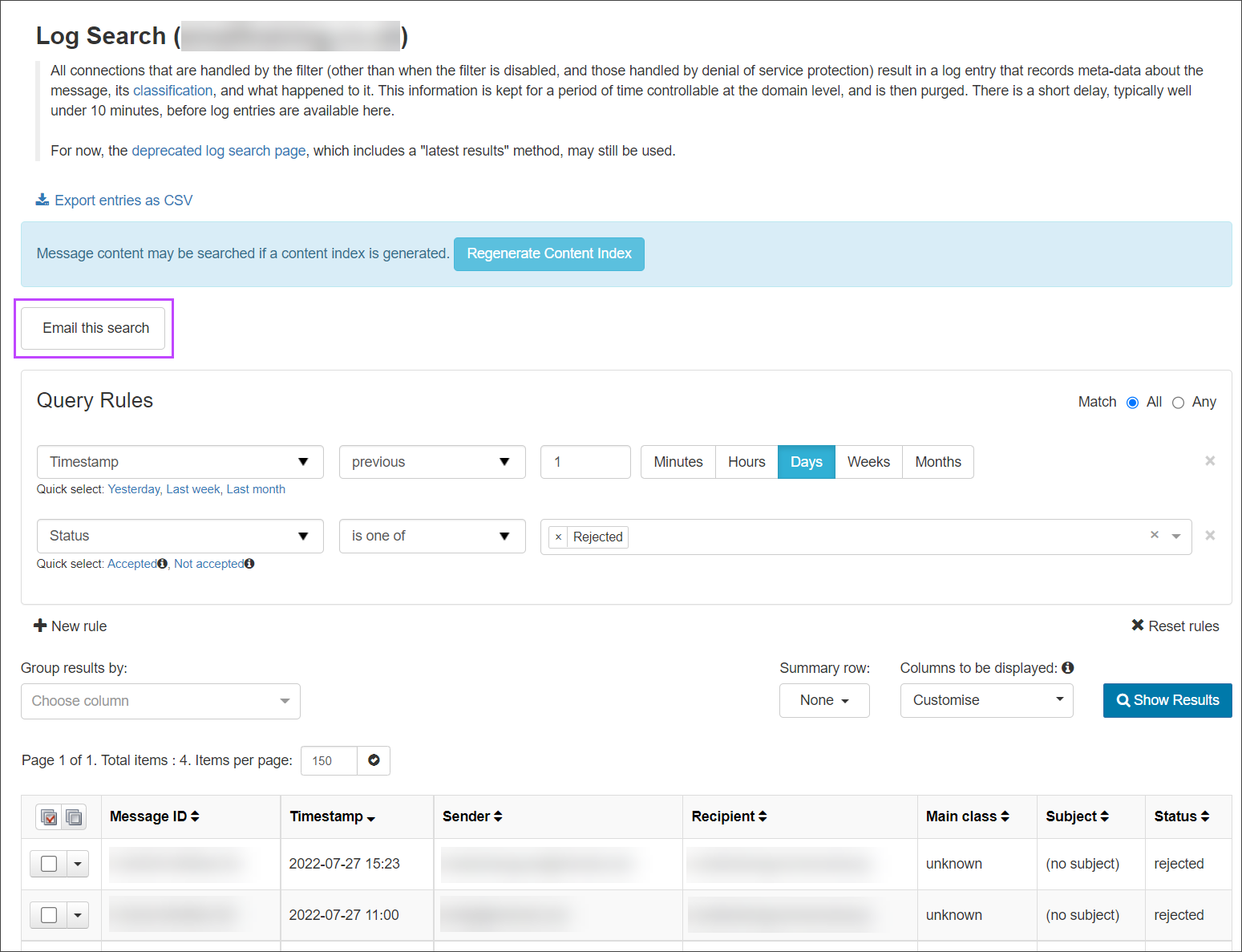
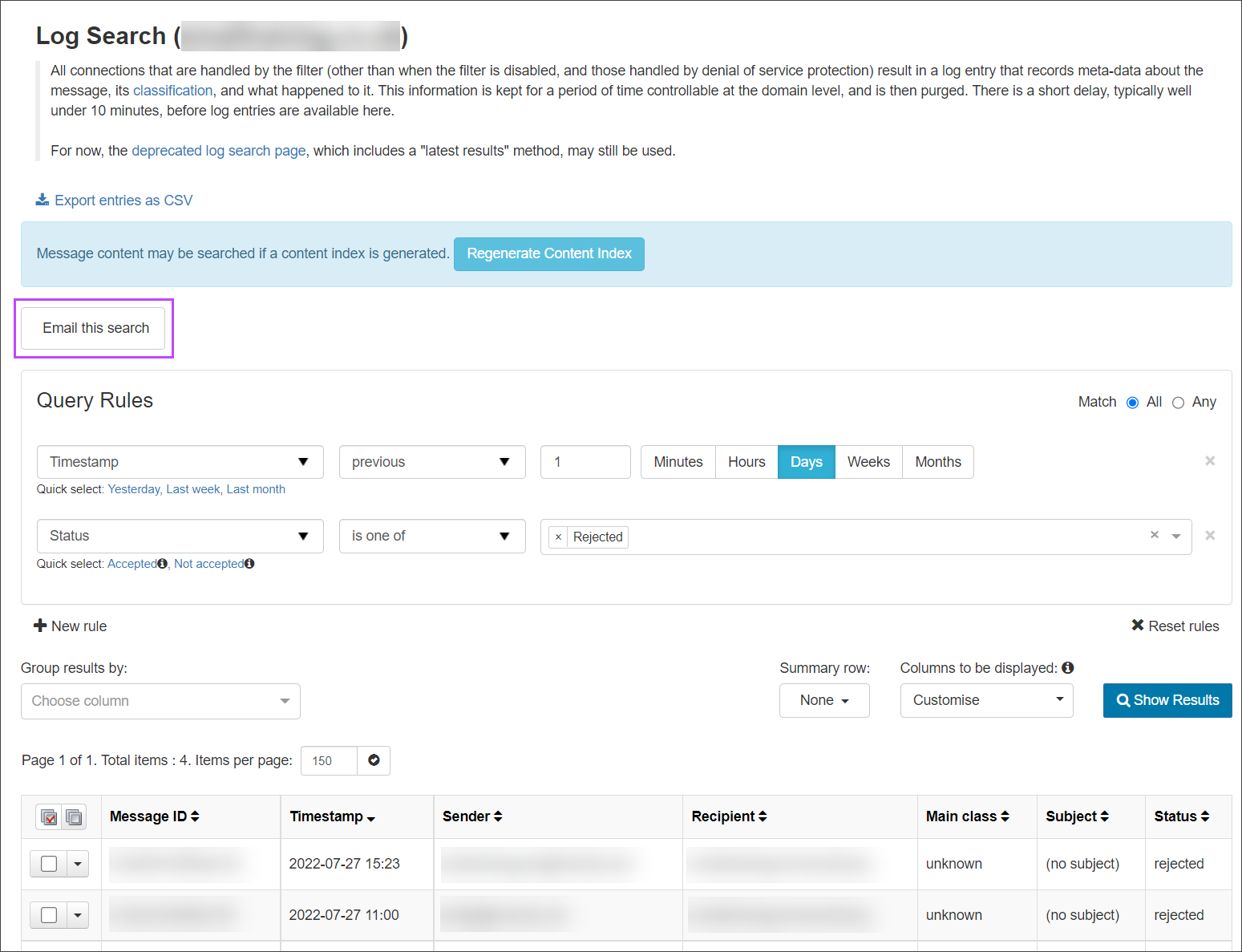
- In the Domain Level Control Panel, click on Incoming > Logs or Outgoing > Logs
- Using the filters in the Query Rules panel, narrow down what log search data you want to display in the results
- Click on Show Results to display messages matching the query rules
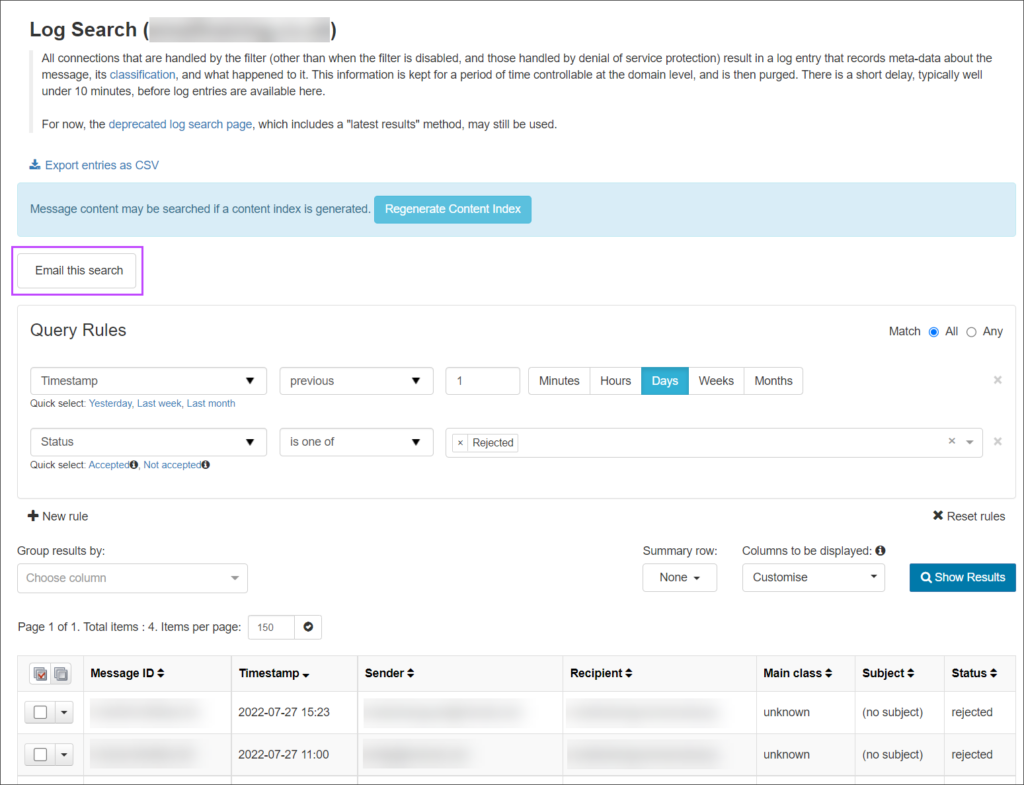
- Click on Email me this report above the Query Rules panel
- The Setup Email Scout Report dialog is displayed in the Details tab. In the Subject field enter the subject for the report: this will be the subject of the report email received by the user
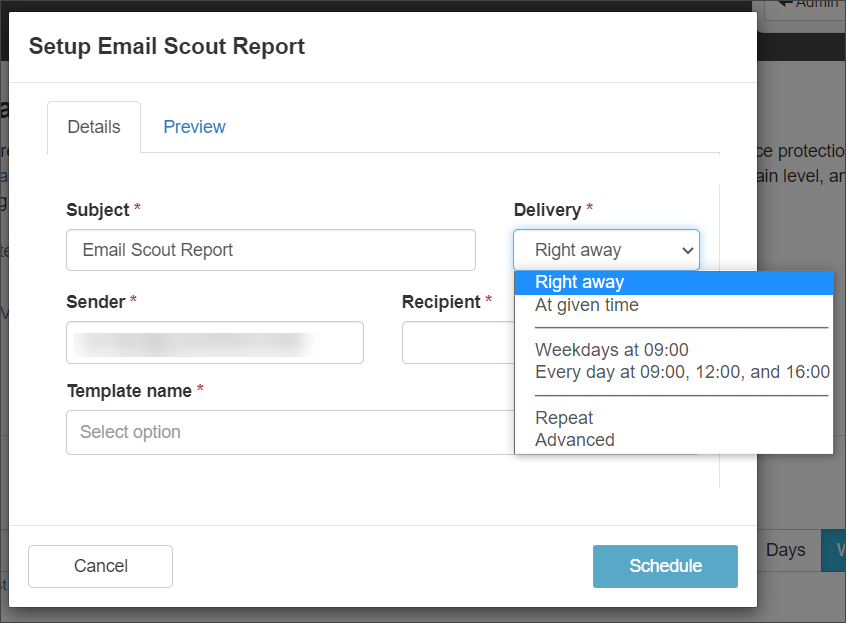
- From the Delivery dropdown, choose from the following options whether you want to create and send the report immediately or at a given date and time:
- Right away – Send the report to the specified recipient(s) immediately (one time only)
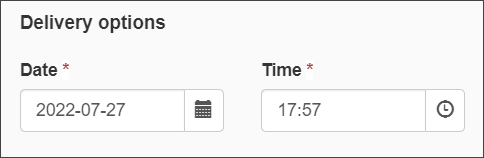
- At given time -Specify a date and time to send the report to the specified recipient(s) (one time only)
- From the Delivery dropdown, choose from the following options whether you want to create and send the report immediately or at a given date and time:
- Enter the sender you want to be displayed in the Sender field of the email
The sender must be a valid sender address such as [email protected] or a valid mailbox at the domain.
-
- Enter the report recipient in the Recipient field
The recipient must be a valid recipient email address, e.g. [email protected]
-
- Select the template to apply in the Template name field
-
- Click on Schedule
The newly created report will be emailed to the recipient as directed
For delivery on Weekdays, Every Day, on Repeat, or Advanced
-
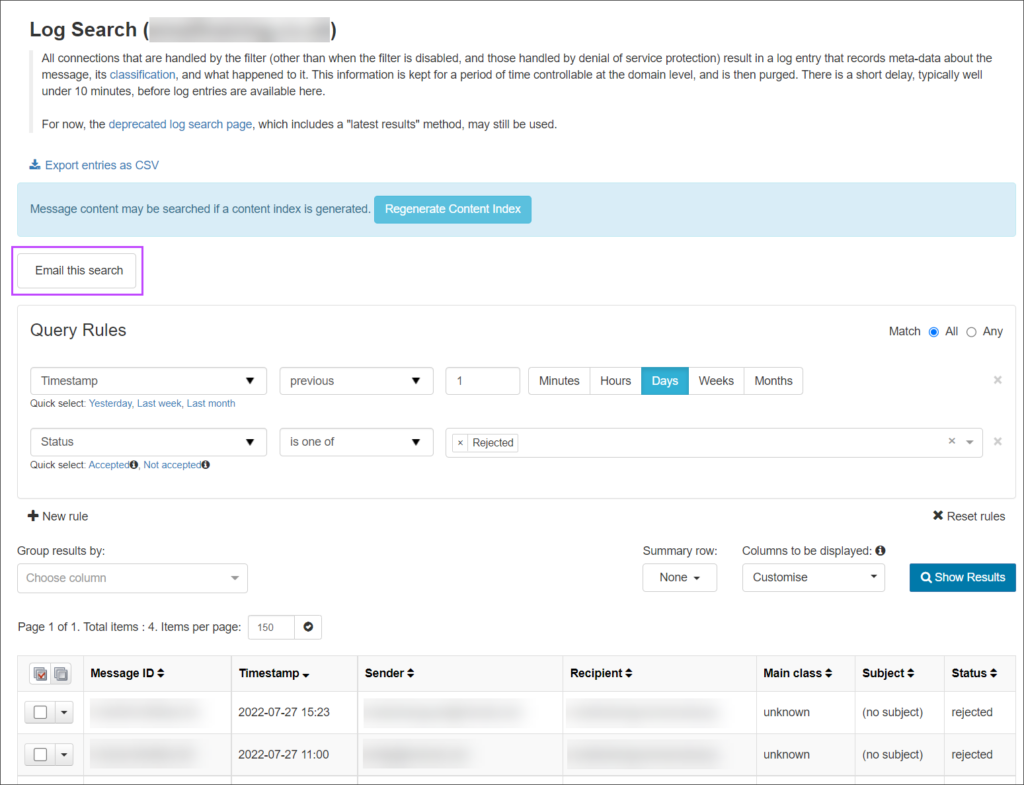
- In the Domain Level Control Panel, click on Incoming > Logs or Outgoing > Logs
- Using the filters in the Query Rules panel, narrow down what log search data you want to display in the results
- Click on Show Results to display messages matching the query rules
- Click on Email me this report above the Query Rules panel
- The Setup Email Scout Report dialog is displayed in the Details tab. In the Subject field enter the subject for the report: this will be the subject of the report email received by the user
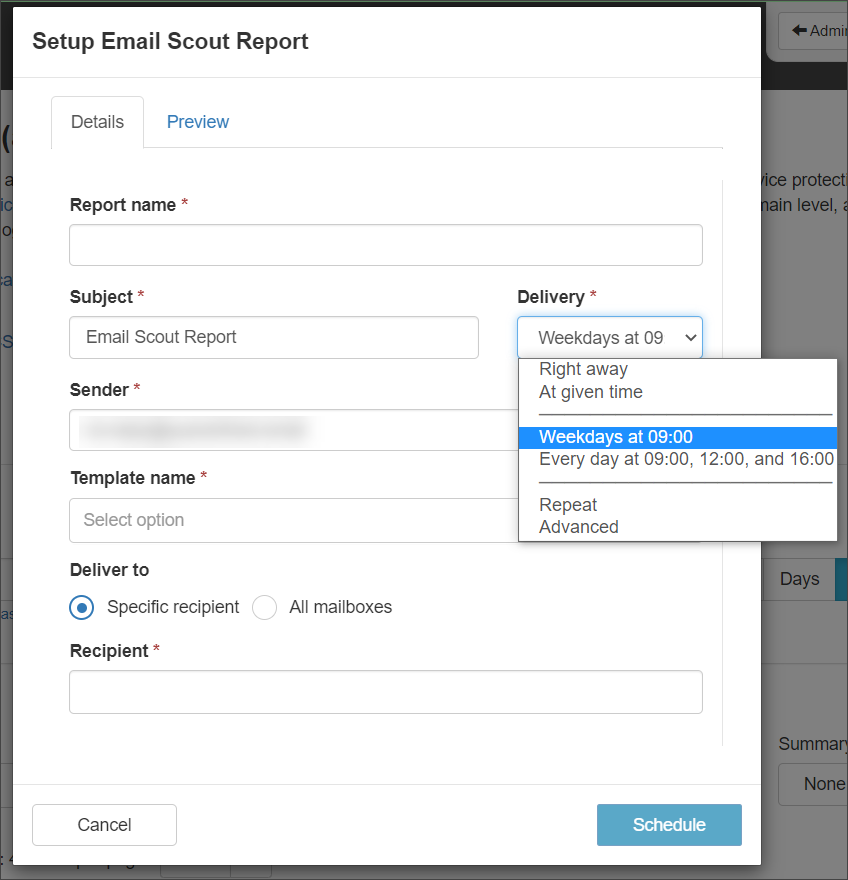
- From the Delivery dropdown, choose from the following options whether you want to create and send the report immediately, or at a given date and time, or create a scheduled report:
- Weekdays at 09:00 – Send the report to the specified recipient(s) every weekday at 9am
- Every day at 09:00, 12:00 and 16:00 – Send the report to the specified recipient(s) every day at 9am, 12 noon and 4pm
- Repeat – Schedule the report to send to the specified recipient(s) using a variety of frequency options:
- Daily
- Once a day
- At the specified time
- Multiple times a day
- Every X minutes or hours
- Starting at the specified time
- Only on weekdays
- Skip sending if there are no results
- Once a day
- Weekly
- Select the days to send the report to the specified recipient(s)
- At the specified time
- Skip sending if there are no results
- Monthly
- Select the day of the month to send the report to the specified recipient(s)
- At the specified time
- Skip sending if there are no results
- Daily
- Advanced – Specify your advanced repeat schedule (in a ‘crontab’ style format)
Field Accepted values Minute 0-59 Hour 0-23 Day 1-31 Month 1-12 Weekday 1-7 (where 7 is Sunday) 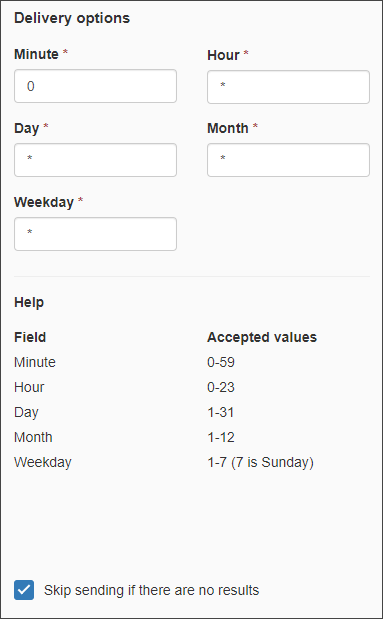
- Enter the sender you want to be displayed in the Sender field of the email
- The Setup Email Scout Report dialog is displayed in the Details tab. In the Subject field enter the subject for the report: this will be the subject of the report email received by the user
The sender must be a valid sender address such as [email protected] or a valid mailbox at the domain.
-
- Select the template to apply in the Template name field
-
- Under the Deliver To section, select either:
- Specific recipient
The recipient must be a valid recipient email address, e.g. [email protected]
- All Mailboxes
- An option to Include shared mailboxes will be displayed when this is selected. Tick this to also send the ESR to Shared Mailboxes
- An Exclude Mailboxes box will be displayed when this is selected. Using the dropdown, select any mailboxes you do not want to receive the report
- Specific recipient
- Click on Schedule
- Under the Deliver To section, select either:
The newly created report will be emailed to the recipient on the date and time specified.
Automatic Email Scout Report Exclusions
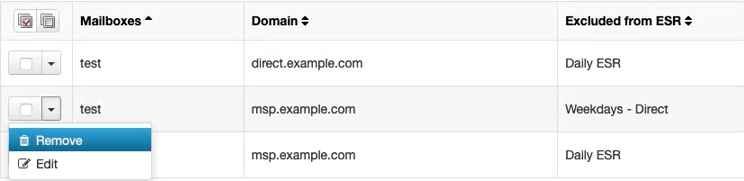
When activated, Email Scout Reports are automatically sent to all detected mailboxes in a domain. However, there may be specific mailboxes in the domain that should not receive Email Scout Reports. In addition to manually added exclusions, this list also contains those mailboxes where the recipient chose to unsubscribe.
To add these mailboxes to the exclusion list
- In the left navigation menu go to Reporting > ESR – incoming
- Select the Automatic Email Scout Report exclusions tab
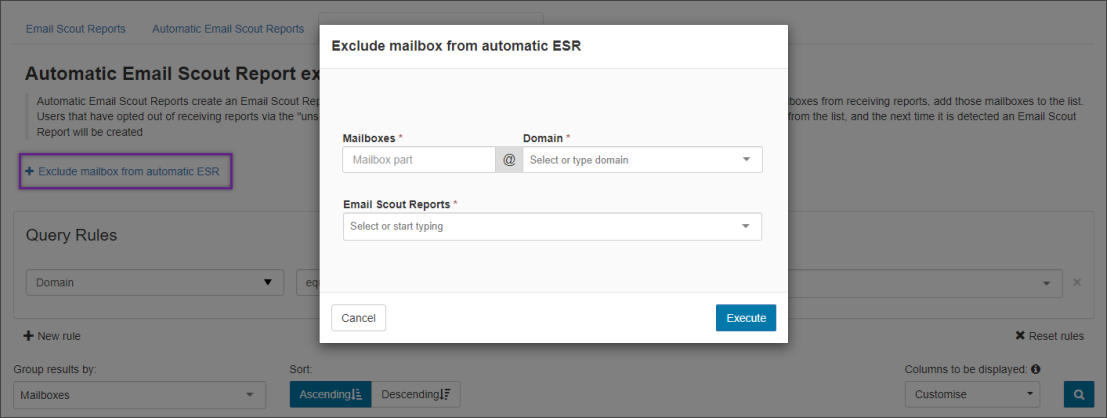
- Click Exclude mailbox from automatic ESR
- Complete the Mailboxes , Domain and Email Scout Reports
- Click Execute to add to the Exclusion list
Once removed from the exclusion list, Automatic Email Scout Reports are generated for the mailbox the next time it is detected.