
The Mailbox Alias tab can be found in the General section of Zerospam.eu Control Panel by opening the Mailboxes Overview/Configuration page and switching to the Mailboxes Alias tab. A mailbox alias rewrites email from one address at a domain to another address at the same domain. You may create multiple mailbox aliases as needed.
For example: if you have the main mailbox [email protected], you can have mailbox aliases of [email protected] and [email protected], then any mail directed to [email protected] will use logging, quarantine, and filtering settings of the primary mailbox, [email protected]
If Direct delivery for email and domain aliases is enabled in Incoming > Domain Settings, then the final delivery of the message will be made to the original version of the address. Otherwise, the delivery will be to the primary mailbox.
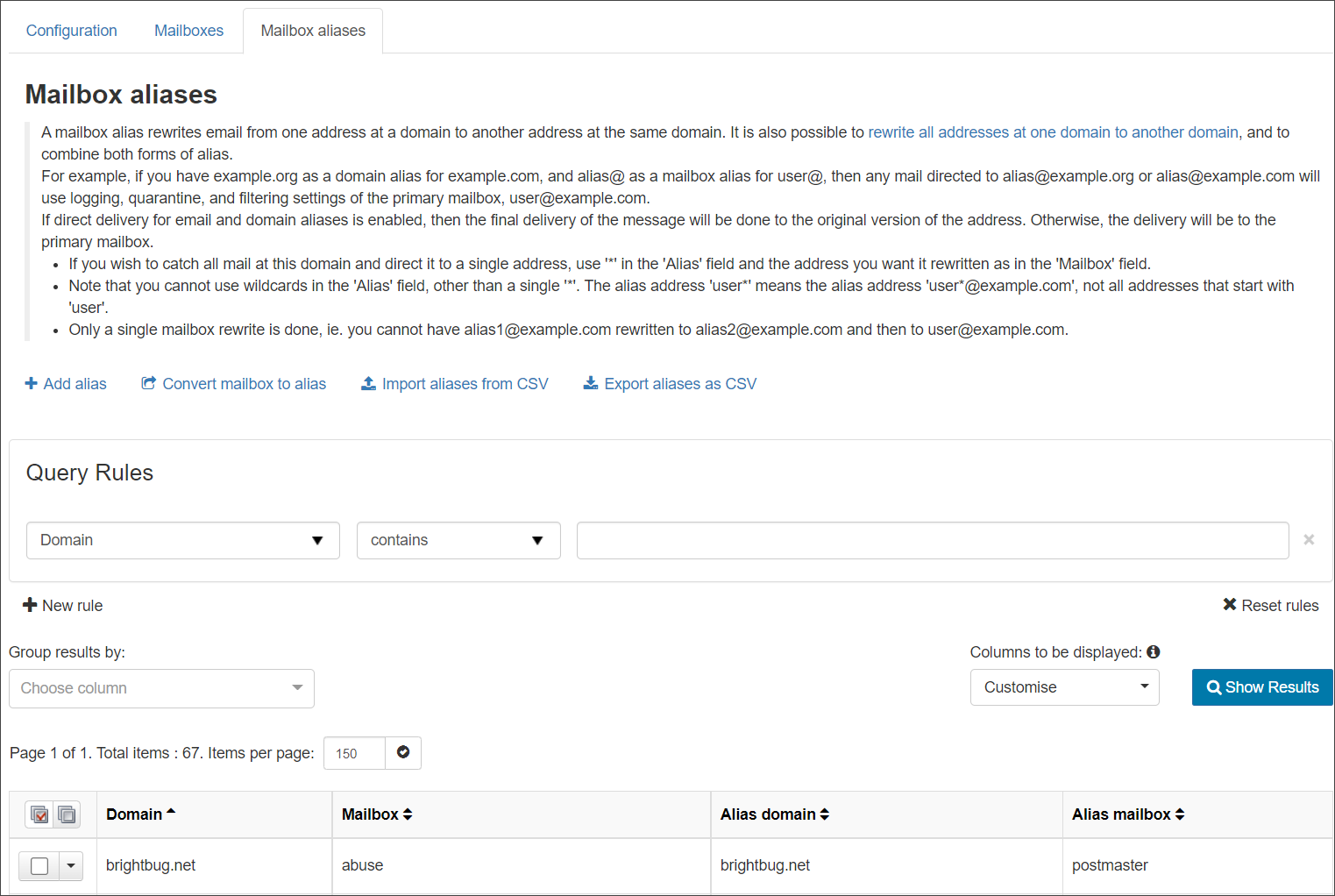
In the Mailbox alias tab, you can do the following:
- Add, edit and remove aliases
- Catch all mail to a domain and direct it to a single address
Add a mailbox alias
- In the Admin or Domain Level Control Panel, select General > Mailbox Configuration
- Open the Mailbox aliases tab
- Click on + Add alias to open the Add alias dialog
- At Admin Level the Domain field is displayed. Start typing to find the domain to which you want to add the alias
- In the Mailbox field, enter the email address without the domain part e.g. if the mailbox address is [email protected], enter ‘john.smith’
- In the Alias field enter the alias email address without the domain part e.g. for [email protected], enter ‘j.smith’
- Click Save
Catch all mail and direct to a single address
- In the Mailbox field enter the address to which you want all mail sent
- In the Alias field enter *
The only wildcard you can enter in the Alias field is a single ‘*’. For example if you enter ‘user*’, this applies to the address [email protected] and NOT all addresses starting with ‘user’.
- Click Save
Only a single rewrite is possible. For example [email protected] cannot be rewritten to [email protected]