
Table of Contents
If you have multiple domains for the same user/company, you can make use of the domain aliasing option. Any email sent to any of your domain aliases will be assigned to the corresponding user mailbox on the primary domain.
In the Domain aliases page you can add and delete aliases for the primary domain.
When you add a domain alias and update the MX records to activate the inbound filtering for this alias domain, mail directed to [email protected] will be filtered and assigned to [email protected] but still retains the original envelope recipient address.
Add a domain alias
- In the Domain Level Control Panel, go to General > Domain aliases
- Click on Add domain alias button to open the Add a New Domain Alias dialog
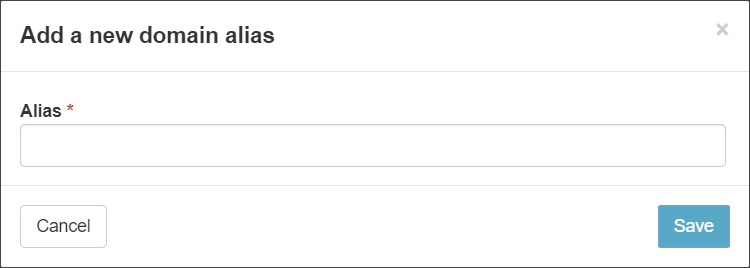
- Enter the domain alias in the Alias field
- Click Save
Domain aliases do not have separate access to the Domain Level Control Panel.
Edit/Remove Domain Aliases
- To edit or remove a domain alias, navigate to General > Domains aliases
- Use the Query Rules panel to search for the alias and click Show Results
- Using the dropdown to the left of each alias, you can choose:
- Edit
- Remove